

A freezing webcam can ruin a video call, a streaming session, or an important recording. Whether your camera freezes after a few seconds or stutters constantly, the problem is almost always fixable without buying new hardware. Below are 7 proven solutions to fix a freezing webcam in Windows 10 and Windows 11.
- 1. Run the Windows Camera Troubleshooter
- 2. Disable Frame Server Mode via Registry
- 3. Update or Reinstall Your Webcam Drivers
- 4. Download Drivers Directly from the Manufacturer
- 5. Check Your Antivirus and Privacy Settings
- 6. Update the Camera App from Microsoft Store
- 7. Install Windows Updates or Roll Back Problematic Ones
- Final Thoughts
- Also read
1. Run the Windows Camera Troubleshooter
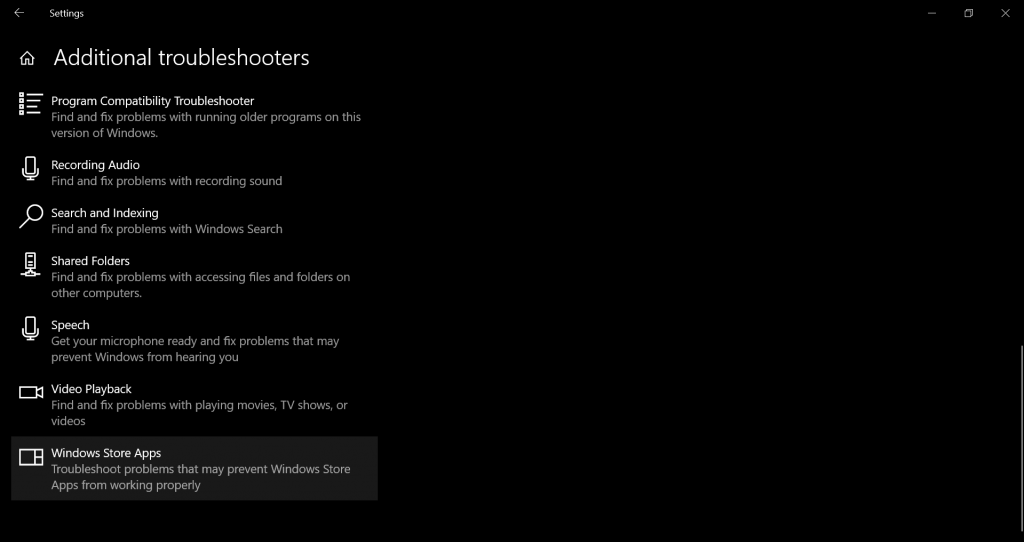
Windows includes built-in troubleshooters that can automatically detect and fix camera problems. Open Settings > System > Troubleshoot > Other troubleshooters, then find and run the Camera troubleshooter. It will scan for driver issues, disabled hardware, and permission conflicts. If an issue is found, Windows will apply the fix automatically. This is the quickest first step and resolves many common freezing problems.
2. Disable Frame Server Mode via Registry
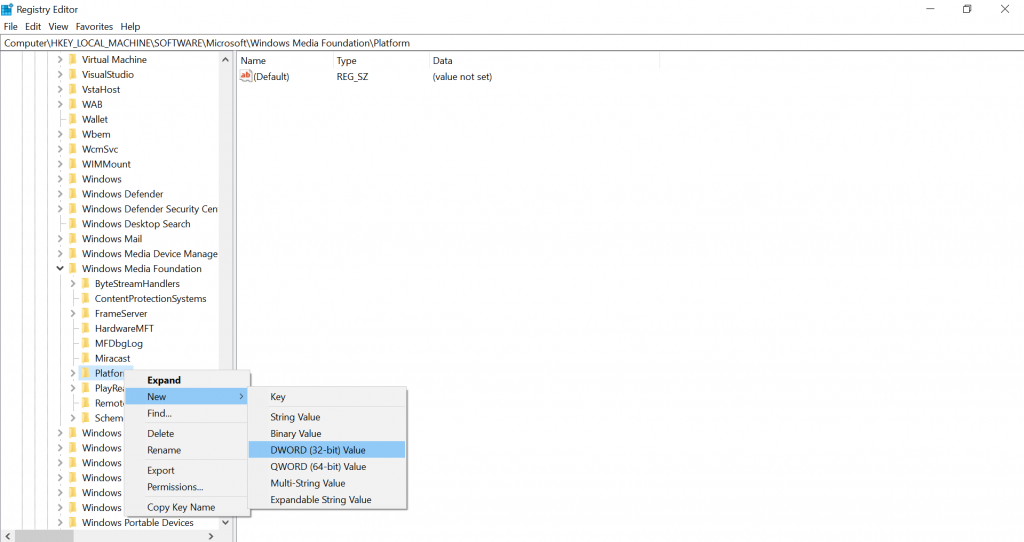
Windows uses a Frame Server Mode to manage camera streams, but it can cause freezing in some applications. Disabling it via the Registry often fixes this. Press Windows + R, type regedit, and navigate to HKEY_LOCAL_MACHINE\SOFTWARE\Microsoft\Windows Media Foundation\Platform. Right-click the right pane, select New > DWORD (32-bit), name it EnableFrameServerMode, and set its value to 0. If you are on 64-bit Windows, repeat the same step under HKEY_LOCAL_MACHINE\SOFTWARE\WOW6432Node\Microsoft\Windows Media Foundation\Platform. Restart your computer for the change to take effect. To undo, simply delete both DWORD entries.
3. Update or Reinstall Your Webcam Drivers
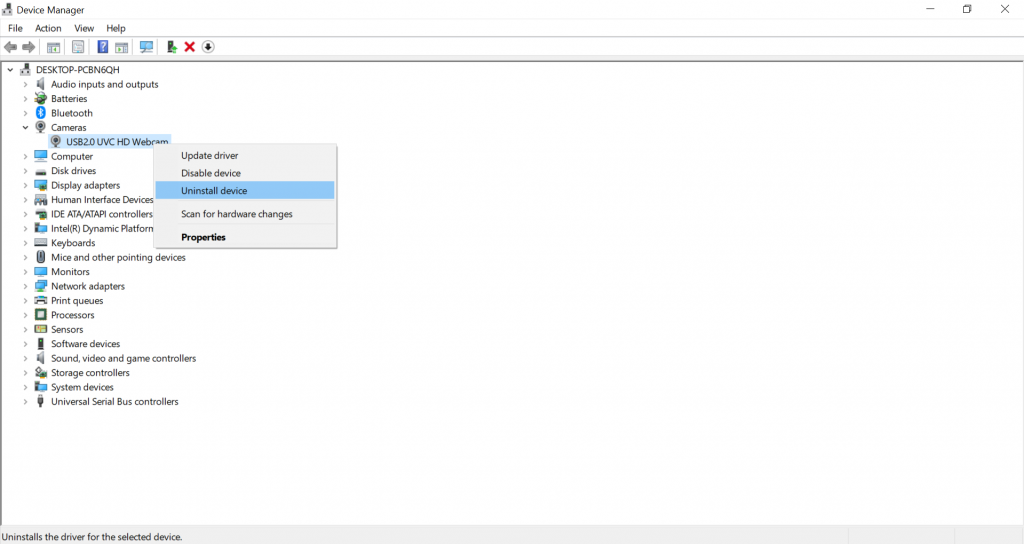
Outdated or corrupted drivers are a leading cause of webcam freezing. Open Device Manager (press Windows + X and select it), expand Cameras or Imaging devices, right-click your webcam, and choose Update driver. If Windows does not find a newer driver, try uninstalling the device completely, then restart your PC. Windows will automatically reinstall the driver on reboot. This fresh install often resolves persistent stuttering issues. For deeper driver cleanup, consider using a display driver uninstaller to remove leftover files before reinstalling.
4. Download Drivers Directly from the Manufacturer
Windows Update may not always have the latest webcam drivers. Visit your laptop or webcam manufacturer’s support website, find your exact model, and download the latest camera driver manually. Brands like Logitech, Razer, and Dell regularly release updated drivers that improve stability. Installing the manufacturer’s driver instead of the generic Windows one can eliminate freezing entirely. If your built-in laptop camera is freezing, check your laptop maker’s support page for chipset and camera firmware updates.
5. Check Your Antivirus and Privacy Settings
Antivirus software and Windows privacy settings can block or interrupt camera access, causing intermittent freezing. In Windows 11 and Windows 10, go to Settings > Privacy & security > Camera and make sure camera access is enabled for your apps. If you use third-party antivirus software, check its privacy or firewall settings for any camera restrictions. Temporarily disabling the antivirus camera scanner can confirm if it is the culprit. For more streaming-related troubleshooting, see our guide on fixing OBS window capture black screen issues.
6. Update the Camera App from Microsoft Store
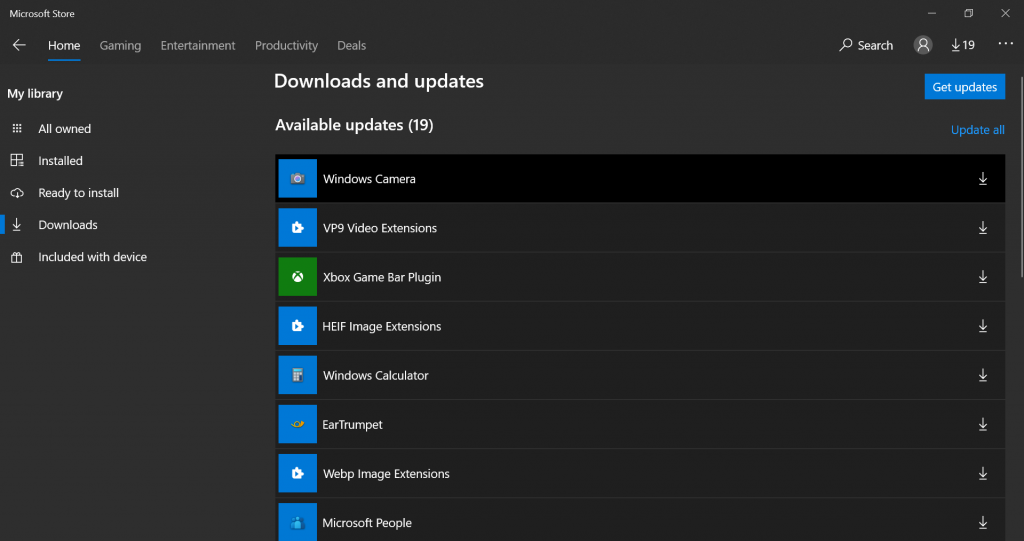
The built-in Windows Camera app can sometimes become outdated and cause freezing. Open the Microsoft Store, click the three dots in the top-right corner, select Downloads and updates, and click Get updates. This will install the latest version of the Camera app along with other Windows app updates. An updated camera app often resolves compatibility issues with Windows 11 and newer webcam hardware. If you use your webcam for streaming, check out our list of top OBS Studio plugins for better camera control.
7. Install Windows Updates or Roll Back Problematic Ones
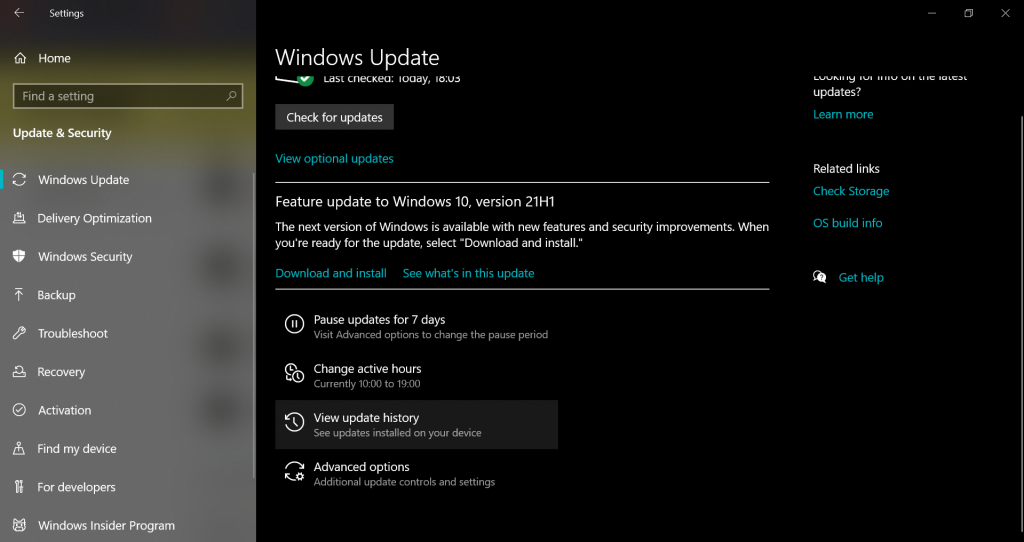
Sometimes a Windows update introduces a bug that breaks webcam functionality. If your webcam started freezing after a recent update, go to Settings > Windows Update > Update history and select Uninstall updates. Remove the most recent update and restart your PC. Conversely, if your webcam drivers are outdated, installing the latest Windows update may include driver fixes that solve the issue. Keeping Windows up to date is generally recommended for hardware stability. If you need an alternative camera setup, learn how to use your mobile phone as a webcam as a temporary or permanent replacement.
Final Thoughts
A freezing webcam is frustrating but rarely a hardware failure. Working through these seven fixes from the troubleshooter to driver updates and registry tweaks will resolve the issue in most cases. If nothing works, try testing your webcam on another computer to confirm whether the camera itself is faulty. For broader Windows performance improvements, see our guide on how to increase internet speed in Windows 10 for faster video calls.