
Discord is one of the most popular chat and VoIP apps for gamers and communities. While its default dark and light themes work well, many users want to customize their background for a more personal look.
- Change the Discord theme through settings
- Change the Discord background with BetterDiscord
- Change the Discord background with third-party tools
- Tips for choosing a Discord background
- Frequently asked questions
- Can I change the Discord background without BetterDiscord?
- Does changing the background slow down Discord?
- Is BetterDiscord safe?
- Can I use a GIF as my Discord background?
- Conclusion
In this guide, you will learn several ways to change the background in Discord. We cover the built-in theme switcher, BetterDiscord plugins, and third-party tools. Whether you want a simple dark mode or a custom wallpaper, there is an option for you.
Change the Discord theme through settings
On PC
Discord Settings
Discord has a built-in option to switch between light and dark themes. The process is quick and easy to follow.
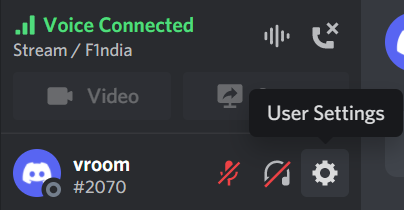
Step 1. Open Discord and click the Settings gear icon near the bottom left, next to your username.
Step 2. Go to the Appearance option in the left sidebar of the settings window.
Step 3. Under the Theme section on the right, choose Dark or Light. You can also enable Sync with Computer to match your system theme automatically.
Discord only ships with two official themes. If you want more variety, check out our guide on how to hyperlink in Discord for more interface tips.
On Mobile (iOS and Android)
Step 1. Tap your profile picture in the bottom right corner.
Step 2. Scroll down and tap Appearance.
Step 3. Select Dark or Light theme. Some devices also offer an AMOLED dark mode for deeper blacks on OLED screens.
Change the Discord background with BetterDiscord
BetterDiscord is a popular client modification that adds custom themes and plugins. It lets you replace the default background with any image or color you want.
Important: BetterDiscord violates Discord’s Terms of Service. Your account could be banned if Discord detects modded clients. Use at your own risk.
Step 1. Download BetterDiscord from the official website and install it.
Step 2. Open Discord and go to User Settings > BetterDiscord > Themes.
Step 3. Click Open Theme Folder and drop in a downloaded theme file (.theme.css).
Step 4. Enable the theme from the Themes menu. Your Discord background will change immediately.
You can find thousands of free themes on sites like BetterDiscord Library. Look for themes that match your style, from minimal to colorful. For related audio tips, see how to mute Discord on OBS.
Change the Discord background with third-party tools
If BetterDiscord is too risky or complicated, several standalone tools can customize Discord’s appearance without modifying the client.
Custom Backgrounds (Chrome Extension)
If you use Discord in a browser, extensions like Custom Backgrounds let you inject custom CSS. You can set any image as your chat background.
Step 1. Install Custom Backgrounds from the Chrome Web Store.
Step 2. Click the extension icon and upload an image or paste a URL.
Step 3. Adjust opacity and blur settings to your preference.
Manual CSS injection
Advanced users can inject custom CSS via browser developer tools or extensions like Stylish. This gives you full control over colors, fonts, and backgrounds.
Example CSS to change the background:
.app {
    background-image: url('https://example.com/your-wallpaper.jpg') !important;
    background-size: cover !important;
}
This method works well for browser users. For the desktop app, you would need a mod like BetterDiscord. Learn more about troubleshooting Discord issues in our guide on fixing the no route error in Discord.
Tips for choosing a Discord background
Keep these best practices in mind when customizing your Discord background:
- Use dark wallpapers so text remains readable. Bright backgrounds can strain your eyes during long chats.
- Avoid busy patterns that make it hard to read messages.
- Stick to images with a 16:9 or 21:9 aspect ratio for the best fit.
- Test your background with both light and dark chat text to ensure contrast.
For more Discord customization ideas, check out how to restart and refresh Discord to clear cache after applying themes.
Frequently asked questions
Can I change the Discord background without BetterDiscord?
Yes. The built-in Appearance settings let you choose between Dark and Light themes. For custom images, you need BetterDiscord or a browser extension.
Does changing the background slow down Discord?
No. A custom background image uses very little extra memory. However, animated backgrounds or heavy CSS modifications might affect performance on low-end systems.
Is BetterDiscord safe?
BetterDiscord is third-party software not affiliated with Discord. It modifies the Discord client, which violates the Terms of Service. Use it on an alternate account if you are concerned about bans.
Can I use a GIF as my Discord background?
Yes. BetterDiscord supports animated backgrounds. Use a .gif file in your custom theme CSS. Keep the file size small to avoid lag.
Conclusion
You have several options to change the background in Discord. The built-in theme settings work for most users. BetterDiscord offers full customization at the cost of ToS compliance. Browser extensions provide a middle ground for web users.
Choose the method that fits your comfort level with mods and customization. If you run into issues, see our guide on restarting and refreshing Discord for troubleshooting steps.