

CPU fan error is a common boot-time warning that can stop your PC from starting properly. This guide explains what causes it and how to fix it for good. If you are dealing with other hardware temperature issues, many of the same troubleshooting principles apply here as well.
What Is CPU Fan Error?
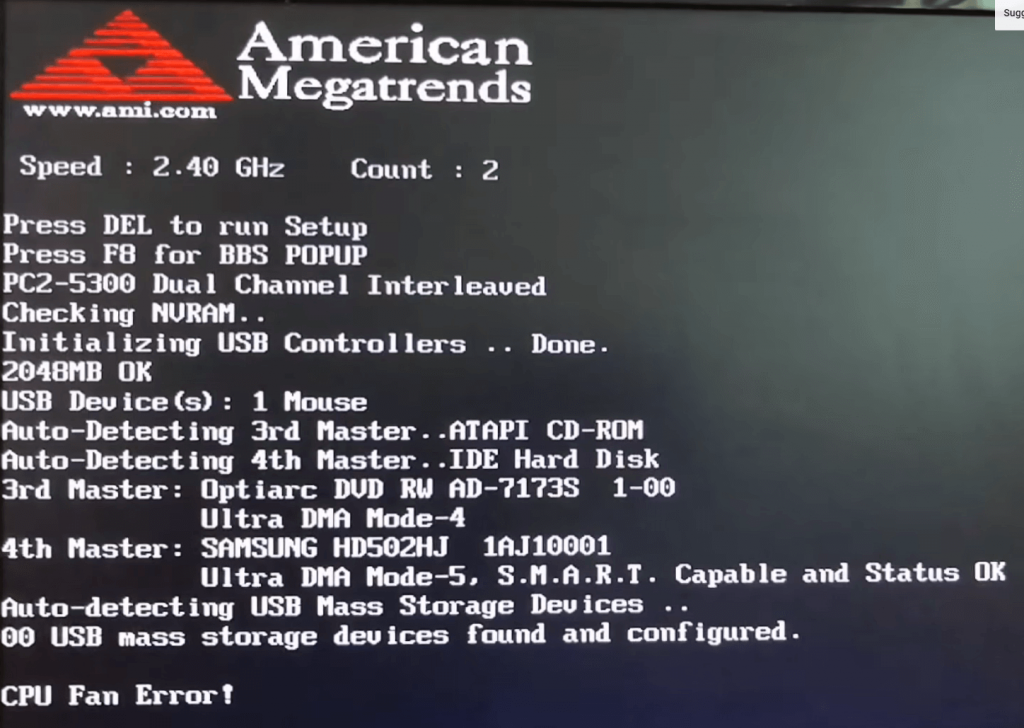
CPU fan error is a warning message that appears when your Windows PC boots up and the system cannot detect the CPU fan running properly. It often shows up after the computer has shut itself down due to overheating, which happens when the cooling system is not working as expected. Addressing this warning quickly is important because prolonged overheating can permanently damage your components. Keeping your PC hardware in good shape starts with proper cooling maintenance.
What Causes CPU Fan Error?
A CPU fan error can be triggered by several factors. Physical damage to the fan blades or motor is a common cause. Incorrect BIOS settings that misconfigure fan detection thresholds can also produce the warning. Dust and debris blocking air vents or fan blades prevent the fan from spinning at the correct speed. Older motherboards with aging fan controllers are especially sensitive and may throw this error even when the fan is mechanically sound. In rare cases, a failing power supply unit may not deliver enough voltage to the fan header.
What Happens When This Message Appears?
Unexpected Shutdown
The system is designed to force a shutdown if a CPU fan is not detected. This safety measure protects the processor from heat damage. You may experience sudden shutdowns seconds after powering on, making the PC unusable until the error is resolved.
Burning Smell
An overheated CPU can release a smoky burning odor. This is a clear sign that your cooler is not working. If you smell burning, shut down the PC immediately and inspect the cooling system before attempting any fixes.
Motherboard Damage
Older motherboards can suffer permanent damage from sustained CPU heat. While modern boards have better thermal protection, early intervention is still the best approach. If you have experienced similar hardware errors before, the same diagnostic steps apply.
How to Fix the CPU Fan Error
1. Clean the Air Vents. Dusty vents are the most common cause of cooling problems. Use compressed air to remove dust from the vents and fan blades. Regular cleaning prevents heat buildup and keeps your system running smoothly. A clean case with good airflow design makes a big difference.
2. Stop Overclocking. A CPU running at higher speeds generates more heat. The stock cooler may not be sufficient for an overclocked chip. Return to default clock speeds in BIOS or software like Intel XTU or AMD Ryzen Master to see if the error goes away.
3. Inspect the CPU Fan Physically. Check if the fan has broken blades or obstructions. On a desktop PC, open the case and look for visible damage. For laptops, professional inspection is recommended since opening the case may void the warranty.
4. Try an Alternate CPU Fan Header. Plugging the CPU cooler into a different fan header can resolve detection issues if the original header is faulty. Consult your motherboard manual to find the correct CPU_FAN header, often labeled CPU_FAN1 or CPU_OPT.
5. Check CPU Fan Settings in BIOS. Restart your PC and press F1, F2, or Del during boot to enter BIOS. Navigate to Advanced Settings > Hardware Monitor > CPU Fan. Enable “Active Heat Sink” and “Fan Duct with Fan.” Disable “Passive Heat Sink.” Save changes and exit.
6. Bypass the Fan Error in BIOS. If you have confirmed that CPU temperatures are normal but the error persists, you can bypass the warning. Enter BIOS and go to Monitor > Fan Speed Monitor. Select your CPU fan and set it to “Ignore” or “N/A.” Save and exit. Only use this as a temporary measure.
7. Replace the CPU Fan. Fans have a limited lifespan. If your fan is old, making unusual noises, or not spinning at all, replacement is the most reliable fix. Consider upgrading to a quality air cooler for better long-term performance and quieter operation.
8. Apply Fresh Thermal Paste. Old thermal paste loses its effectiveness over time, reducing heat transfer from the CPU to the cooler. Reapplying high-quality thermal paste can lower temperatures by 5 to 10 degrees Celsius. Be sure to clean the old paste off completely with isopropyl alcohol before applying the new layer.
How to Prevent CPU Fan Error in the Future
Preventive maintenance goes a long way. Clean your PC case every three to six months. Monitor CPU temperatures using software like HWMonitor or Core Temp. Replace case fans every few years as bearings wear out. If you notice fan noise increasing, that is often the first sign of a failing bearing. Addressing small cooling problems early prevents bigger hardware issues down the road.
Conclusion
A CPU fan error is a warning you should never ignore. Start with the simple fixes like cleaning and checking connections, then move on to BIOS tweaks if needed. If the problem persists after trying all steps, take your PC to a professional technician for a thorough inspection. Taking care of your cooling system extends the life of every component in your build.
Frequently Asked Questions
Why does my computer say CPU fan error?
The message appears when the system detects that the CPU fan is not working properly or is not detected at all during the boot sequence.
What happens if the CPU fan fails?
A failed CPU fan causes the processor to overheat. Modern motherboards force an automatic shutdown to prevent permanent damage to the CPU and other components.
How do I fix a Lenovo CPU fan failure (Error 0135)?
Reset the BIOS by turning on your PC and pressing F1 until the Lenovo logo appears. Press F9 and select YES to reset to defaults. Press F10 to save changes and restart.
What is a healthy CPU temperature?
A desktop CPU typically runs around 49 degrees Celsius (120 degrees Fahrenheit) when idle and up to 80 degrees Celsius (175 degrees Fahrenheit) under load. Anything above 88 degrees Celsius (190 degrees Fahrenheit) indicates a cooling problem that needs attention.
Can a CPU fan error damage other components?
Yes. Overheating can damage the motherboard, RAM, and even the power supply over time. Addressing the error quickly protects your entire system.