

In June 2020, Google announced a major round of privacy updates: auto-delete controls, a faster Privacy Checkup, and a built-in password checker. The goal was to give users more control over the data Google collects. In 2026, those tools have grown into a full privacy hub inside your Google Account, and this guide shows you how to use them step by step.
If you use Gmail, YouTube, Chrome, or Android, Google stores activity tied to your account. That data powers search suggestions, Maps history, and ad personalization. The good news is that you decide how long it stays, what gets saved, and what gets deleted.
What the 2020 Privacy Updates Introduced
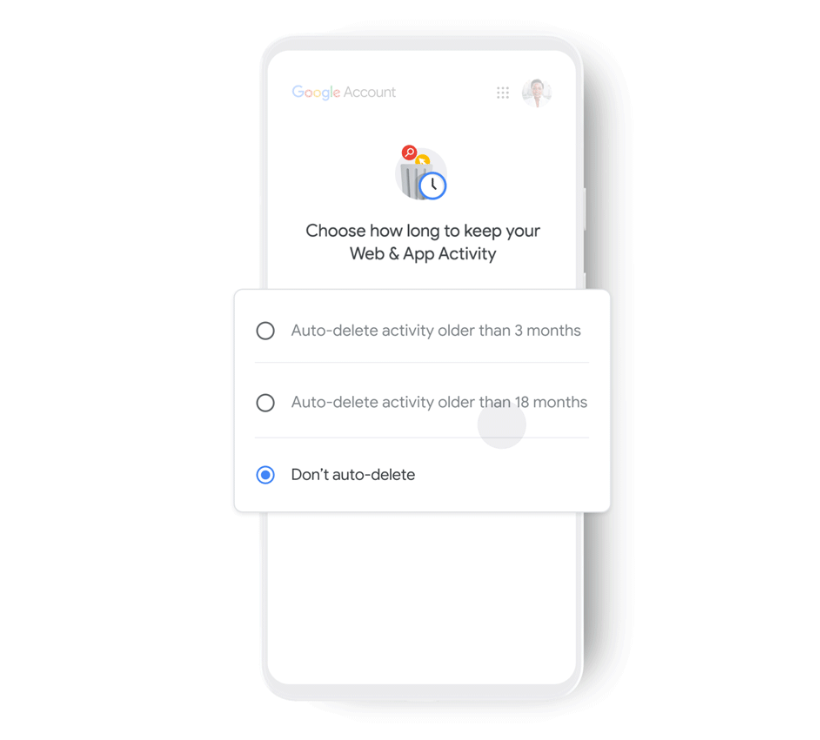
The 2020 changes focused on three things: data retention, account checkups, and password safety. Google introduced auto-delete options so you could set how long your activity is kept before it is removed automatically. It also made the Privacy Checkup easier to find from Google Search itself.
That foundation still exists in 2026, but the controls now live in one place. Open your Google Account, go to the Data and privacy tab, and you will find activity controls, history settings, and ad personalization options all in a single dashboard.
How Auto-Delete Controls Work
Auto-delete lets you choose how long Google keeps your Web and App Activity, Location History, and YouTube History. You can pick 3 months, 18 months, or 36 months, or choose to keep everything until you delete it manually. Once the timer runs out, matching activity is removed automatically.
To set it up, go to your Google Account, open Data and privacy, and find the History settings section. Each activity type has its own auto-delete option, so you can keep YouTube history longer than location history, for example. If you prefer, you can also delete everything with the Delete activity by date tool.
This is the same idea Google launched back in 2020, expanded from location and web activity to nearly every service that stores account data. For a related cleanup guide, check out how to stop receiving spam emails and reduce the noise in your inbox.
Run a Privacy Checkup
The Privacy Checkup walks through your key settings in a few short steps. It reviews activity controls, ad personalization, and which apps have access to your account. You can start it from the Data and privacy page or by searching “Privacy Checkup” in Google while signed in.
During the checkup, you can turn off ad personalization, revoke access to apps you no longer use, and review what Google knows about you. A quick five-minute pass a few times a year keeps your settings aligned with how you actually want to use Google services.
Check Your Passwords With Google Password Manager
Google’s Password Checkup, which was announced around the same time as the 2020 privacy updates, is now built into Google Password Manager. It scans your saved passwords against known data breaches and flags any that have been exposed. It also warns you about reused or weak passwords.
To use it, open passwords.google.com or go to passwords in your Google Account settings. If a password shows up as compromised, change it right away, and do not reuse it on other sites. Credential leaks are common, and stolen login details often end up sold on the dark web, as we covered in our report on Zoom accounts sold on the dark web.
Protect Your Account From Breaches
Strong privacy settings only help if your account itself is secure. Turn on two-step verification, review your security events, and check which devices are signed in. Google flags suspicious activity in the Security Checkup, so run it alongside the Privacy Checkup.
If you have ever reused a password across services, the risk is real. Major breaches have exposed millions of accounts, including gaming platforms, and attackers move fast once credentials are out. See our guide on securing your Nintendo account after a large-scale hack for a real example of what to do after a breach.
What About Incognito Mode?
Incognito mode in Chrome prevents your browsing history from being saved on your device, but it never made you invisible to websites or to Google. That misunderstanding led to a class action lawsuit over data collected during incognito sessions.
Google settled the case and agreed to delete billions of incognito data records and update its disclosures. In 2026, the incognito start page clearly warns that sites you visit can still see your activity. Use it for local privacy, but remember that your IP address and site visits are still visible to the websites themselves.
FAQ
Does Google sell my data? No. Google does not sell your personal information. It uses your activity for its own services like search and ads, and it gives you controls to limit how much is stored.
How do I auto-delete my Google activity? Go to your Google Account, open Data and privacy, and set an auto-delete option for Web and App Activity, Location History, and YouTube History.
Is incognito mode private? Incognito stops your browser from saving history and cookies on your device, but websites, your school or workplace, and your internet provider can still see your activity.
How do I check if my passwords were leaked? Open Google Password Manager and run the Password Checkup. It compares your saved passwords against known breach databases and flags anything exposed.
How often should I run a Privacy Checkup? A few times a year is enough for most people. Run it after big life changes, like switching devices or apps, to keep permissions and controls up to date.
Privacy settings only matter if you actually revisit them. Take ten minutes to review your Google Account controls, set an auto-delete timer, and check your saved passwords. While you are at it, tighten up the rest of your digital life, starting with how to hide read receipts on WhatsApp so your messaging habits stay private too.


![How to Whatsapp someone without adding them in contacts[4 easy methods]](https://meshpie.com/wp-content/uploads/2020/04/Whatsapp-someone-without-adding-them-in-contacts4-easy-methods-150x150.png)