
By using this site, you agree to the Privacy Policy and Terms of Use.
Accept

Meshpie

DailyTech

  • Home
  • Tech
  • Gaming
  • Blogging
  • Reviews
Search
© 2022 Foxiz News Network. Ruby Design Company. All Rights Reserved.
Reading: Now you can Create your own Facebook Avatars!
Share
Aa
MeshpieMeshpie
Aa
  • Home
  • Tech
  • Gaming
  • Blogging
  • Reviews
Search
  • Home
  • Tech
  • Gaming
  • Blogging
  • Reviews
Follow US
© 2022 Foxiz News Network. Ruby Design Company. All Rights Reserved.

Home > News > Now you can Create your own Facebook Avatars!

News

Now you can Create your own Facebook Avatars!

Aksara
Last updated: 2020/05/24 at 6:46 AM
Aksara
Share
SHARE
Facebook now allows you to create your own avatars
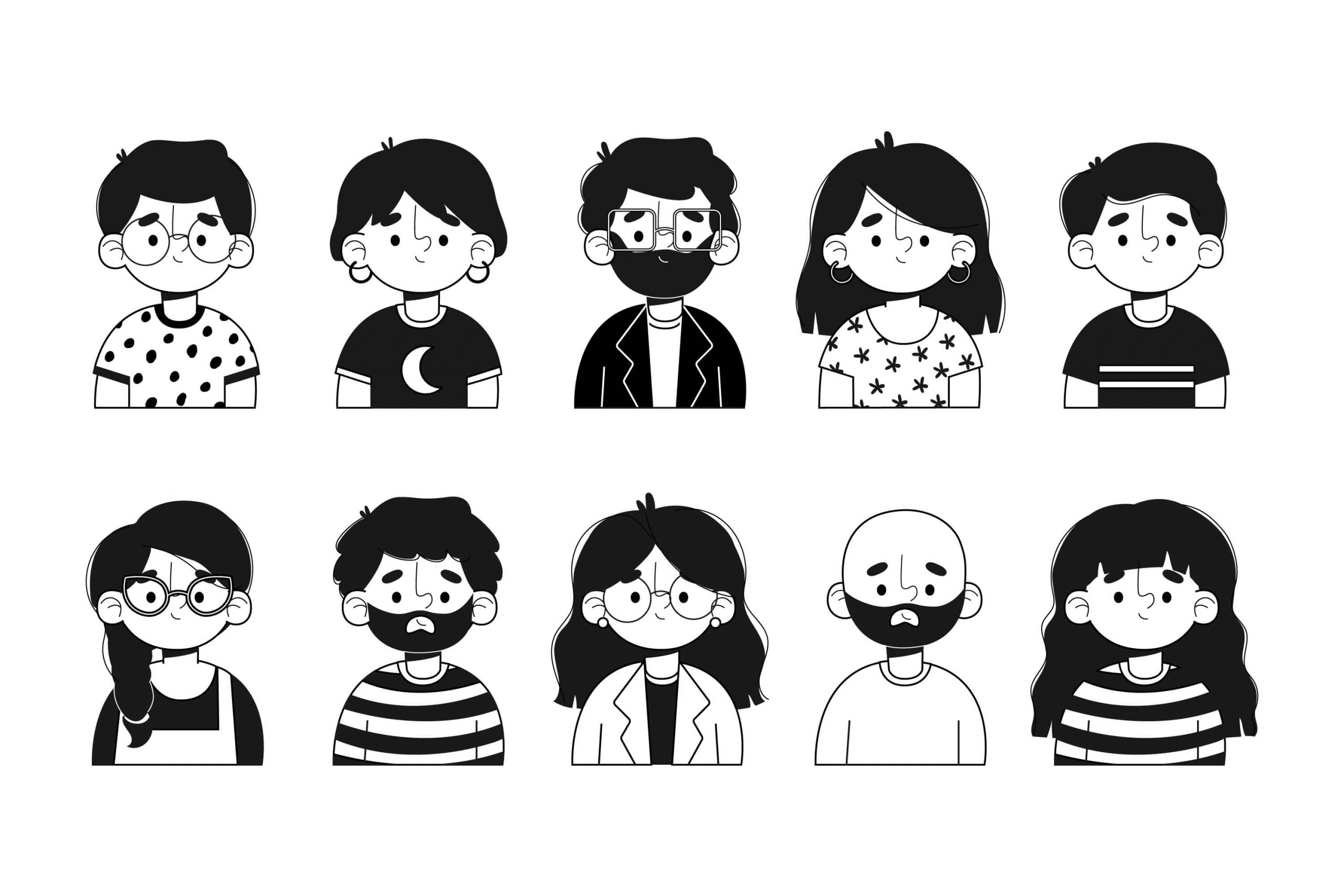
Avatars has been around for a considerable amount of time, and now they’ve come to Facebook. The social community may trail a long time behind Yahoo, Bitmoji, and Apple’s Memoji avatars, yet the most current Facebook expansion is filling your newsfeed with an assortment of faces, hairdos, and outfits. Presented a week ago, Facebook avatars let you make a cartoony character to look like yourself, which you can use as stickers in comments, stories, and Facebook Messenger.
Likewise, your avatar can be utilized instead of your Facebook profile picture and can be used in text messages on your smartphone. You can likewise send the avatar stickers on other social media platforms like Snapchat, Twitter, Mail, and Instagram.
Here is how you can make one:


1. Open the Facebook app on your smartphone and tap the hamburger menu (three stacked lines). If you are using an iPhone, it could be in the lower right corner, or if you are using an Android smartphone, then it will be on the upper right corner.

2. Scroll down and tap See More option.

3. From the various options Select Avatars.

- Advertisement -

4. Tap Next and then Get Started.

5. Select your preferred skin tone (there are 27 options) and tap Next.

6. You’ll then be asked to choose a hairstyle for your avatar. You can select Short, Medium, Or Long for a variety of styles. Once you’ve made your selection, tap the Color icon.

7. Next, you’ll move on to your avatar’s Face icon, where you’ll select the face shape, complexion, and face lines.

8. After you’ve customized the face, tap the Eye icon. Select an eye shape, color, and lash length. Then move on to the Eyebrows icon and select the brow shape and color. You can also add glasses.

- Advertisement -

9. Now it’s time to customize the nose and mouth. Select your nose shape and then move on to your lips shape. You can also add a lip color and facial hair.

10. Next, select body shape. Once you do this, you can choose an outfit that suits you best.

11. Once you’re finished customizing your avatar, tap the check mark icon in the upper right corner. Tap Next and then Done.

- Advertisement -

That’s it, you have your own avatar that you can use anywhere!


Also read: Facebook Discover Testing Starts To Provide Free Internet

You Might Also Like

Apple Launches iPhone 17 Series in Ireland

Everything you need to know about Valorant Team Deathmatch mode

Windows 11 Cheat sheet – Everything you need to know

Everything you need to know about Valorant Recon Bundle

Everything you need to know about the OnePlus watch [2021]

Share This Article
Facebook Twitter Copy Link Print
By Aksara
Follow:
A digital marketer by profession who enjoys sharing his knowledge of technology through his work. His enthusiasm for sharing his knowledge knows no bounds. He revels in creating engaging content that demystifies complex tech concepts, making them accessible and enjoyable for all.
Previous Article steam-client Steam Client Alpha Secretly Pops Up In China With Limited Features
Next Article redmi-tv-soundbar Redmi TV Soundbar Released In China For 199 Yuan
Leave a comment

Leave a Reply Cancel reply

Your email address will not be published. Required fields are marked *

MeshpieMeshpie
Follow US
© 2023 MeshPie. All Rights Reserved.
  • Home
  • News