

Windows 10 continues to dominate the desktop OS market with a massive share. If you have not activated your copy yet, you can activate Windows 10 using Command Prompt in just a few minutes. This method is completely free, does not require any third-party software, and works with a stable internet connection. Follow this step-by-step guide to get your Windows 10 activated today.
How to Check if Your Windows Is Activated
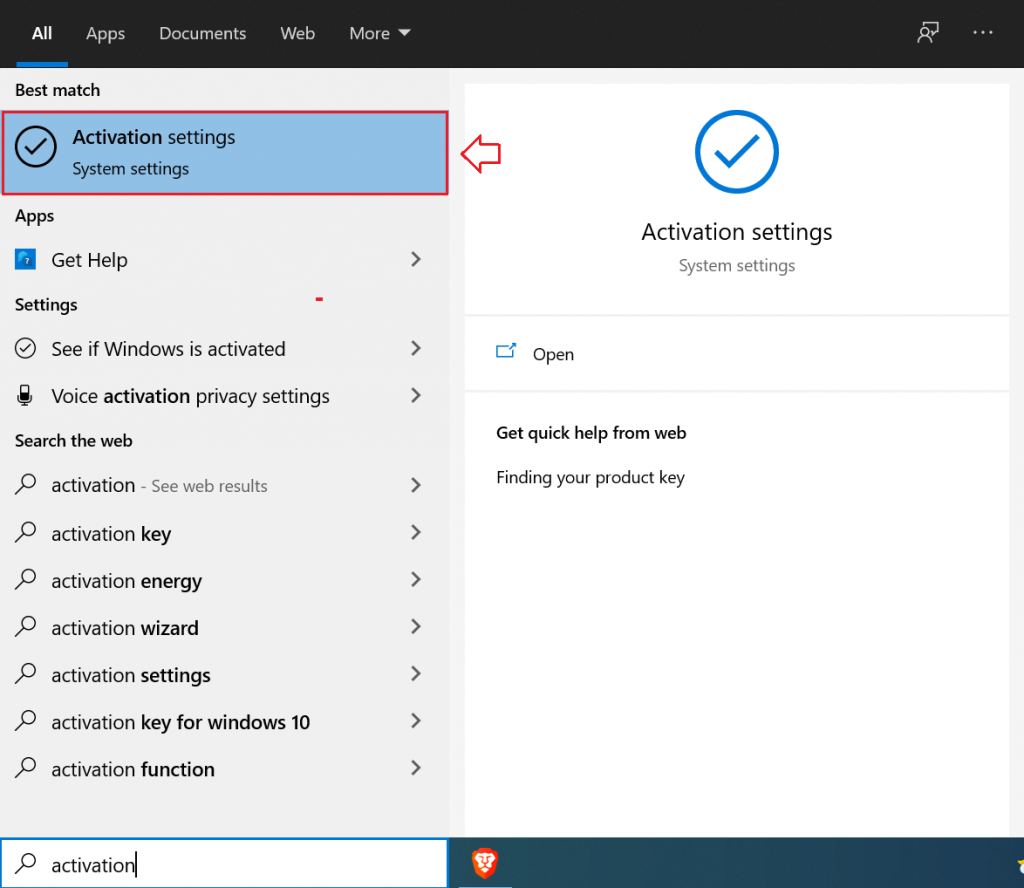
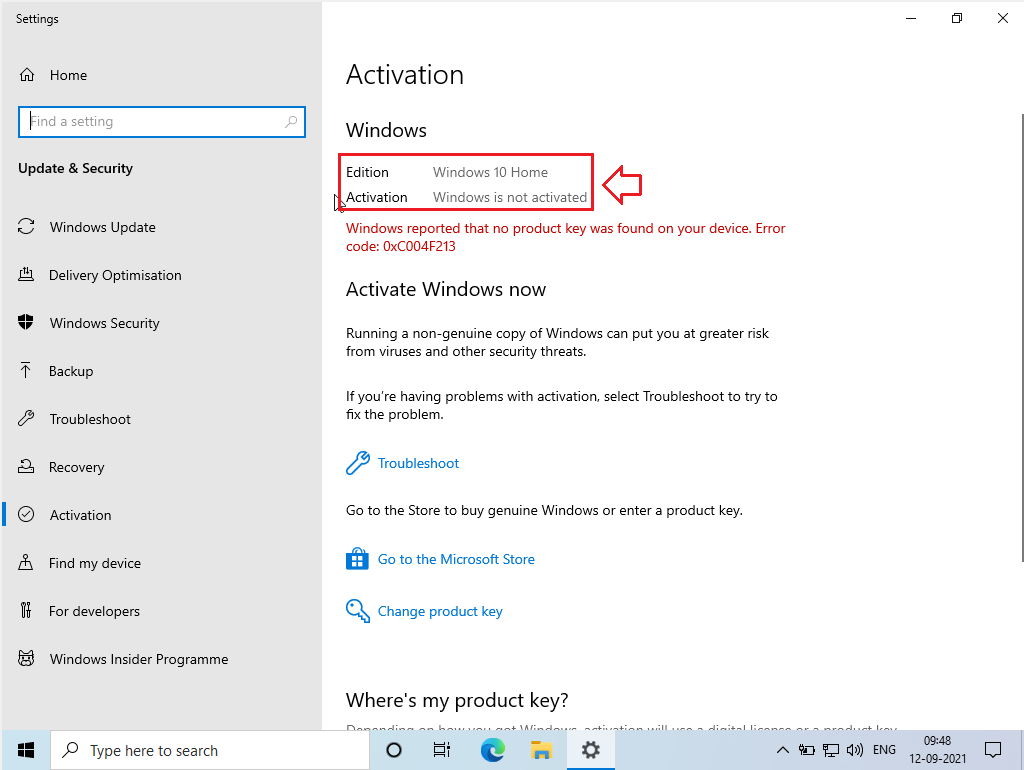
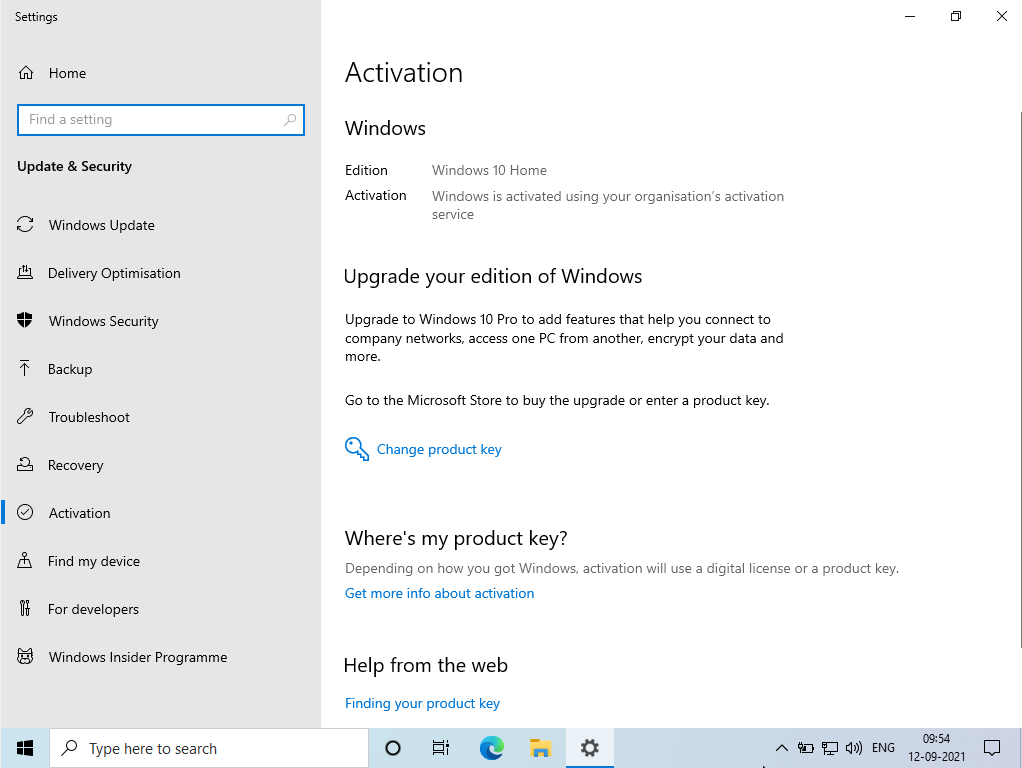
Press Win + S to open the Start menu search bar and type Activation. Select the Activation Settings option that appears at the top. This screen shows you whether your Windows copy is already activated or not.
How to Activate Windows 10 Using Command Prompt
Step 1: Open Command Prompt as Administrator
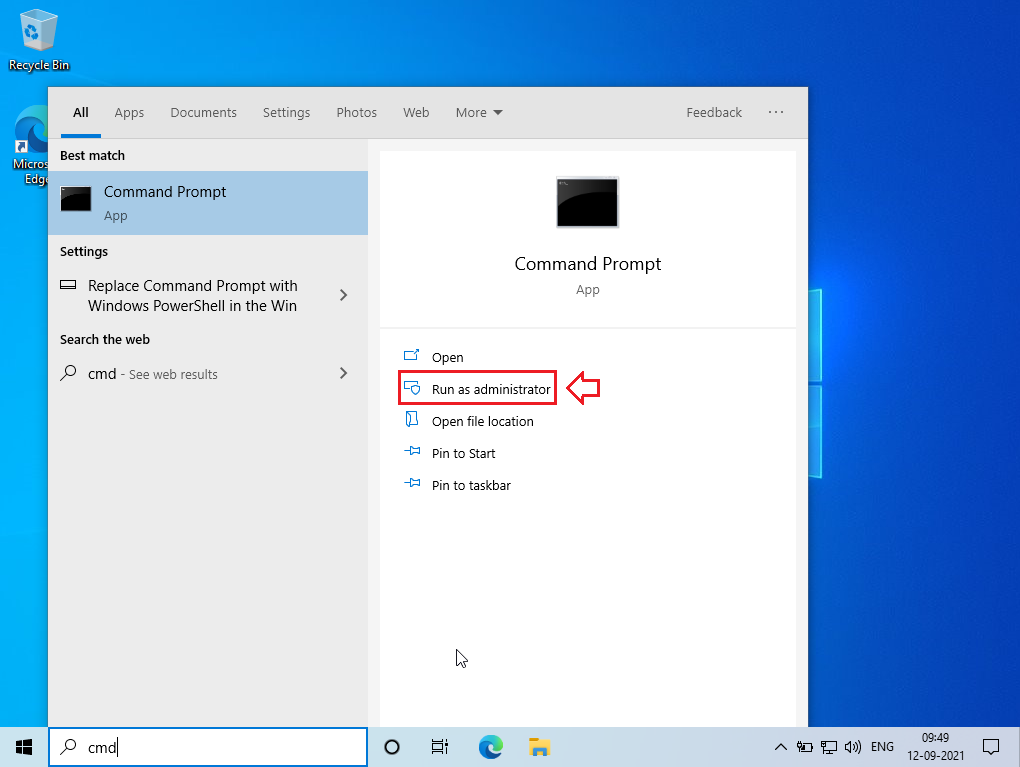
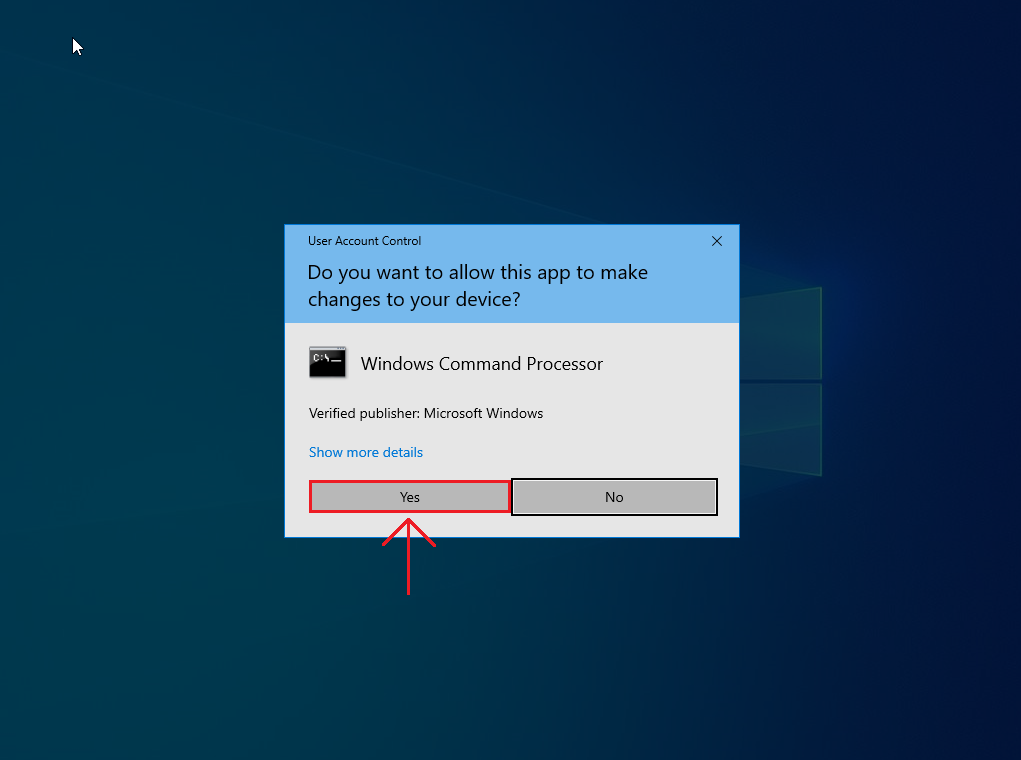
Press Win + S to open the Start menu search bar and type cmd. You will see Command Prompt at the top of the results. On the right-hand side panel, click Run as Administrator. A User Account Control prompt will appear – click Yes to proceed.
Step 2: Install the Product Key
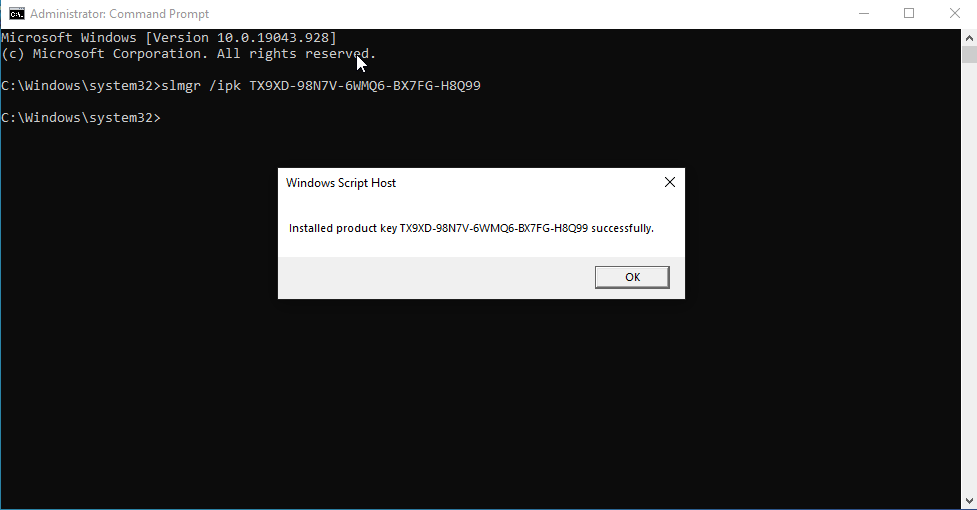
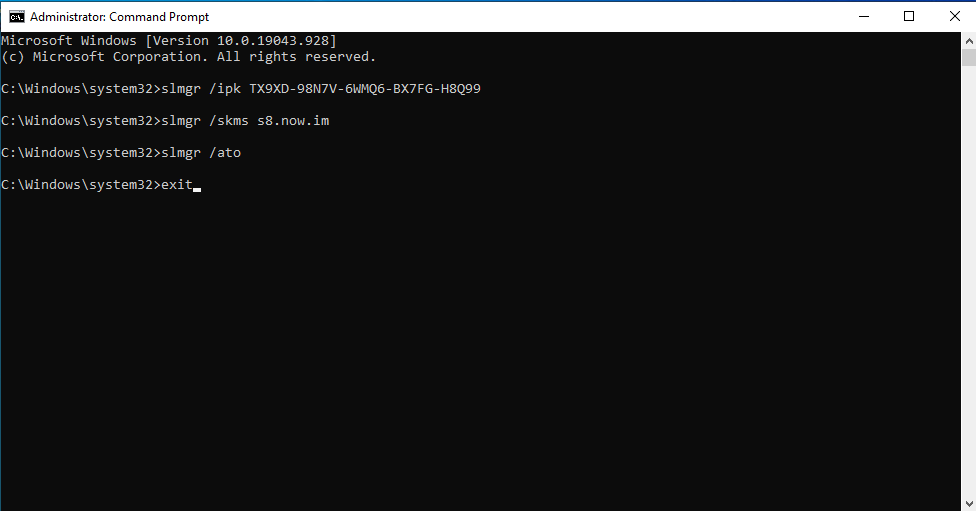
In the Command Prompt window, type slmgr /ipk followed by your product key and press Enter. Use one of the generic KMS client keys below that matches your Windows 10 edition:
- Home: TX9XD-98N7V-6WMQ6-BX7FG-H8Q99
- Home N: 3KHY7-WNT83-DGQKR-F7HPR-844BM
- Home Single Language: 7HNRX-D7KGG-3K4RQ-4WPJ4-YTDFH
- Home Country Specific: PVMJN-6DFY6-9CCP6-7BKTT-D3WVR
- Professional: W269N-WFGWX-YVC9B-4J6C9-T83GX
- Professional N: MH37W-N47XK-V7XM9-C7227-GCQG9
- Education: NW6C2-QMPVW-D7KKK-3GKT6-VCFB2
- Education N: 2WH4N-8QGBV-H22JP-CT43Q-MDWWJ
- Enterprise: NPPR9-FWDCX-D2C8J-H872K-2YT43
- Enterprise N: DPH2V-TTNVB-4X9Q3-TJR4H-KHJW4
For example, if you have Windows 10 Home, type: slmgr /ipk TX9XD-98N7V-6WMQ6-BX7FG-H8Q99 and press Enter. You will see a confirmation message that the product key was installed successfully.
Step 3: Set the KMS Machine Address
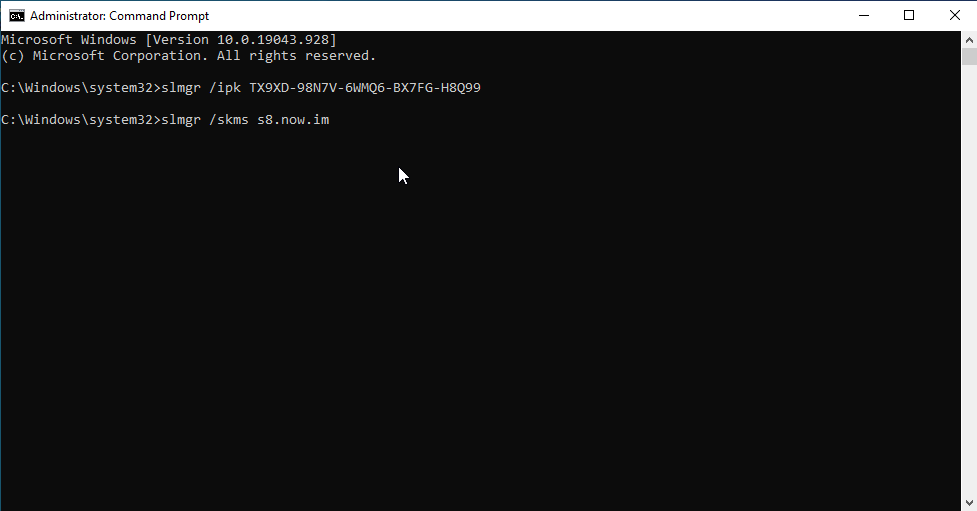
Type slmgr /skms s8.now.im and press Enter. This connects your system to a KMS server so it can validate the activation. Wait for the confirmation message before moving to the next step.
Step 4: Activate Windows 10
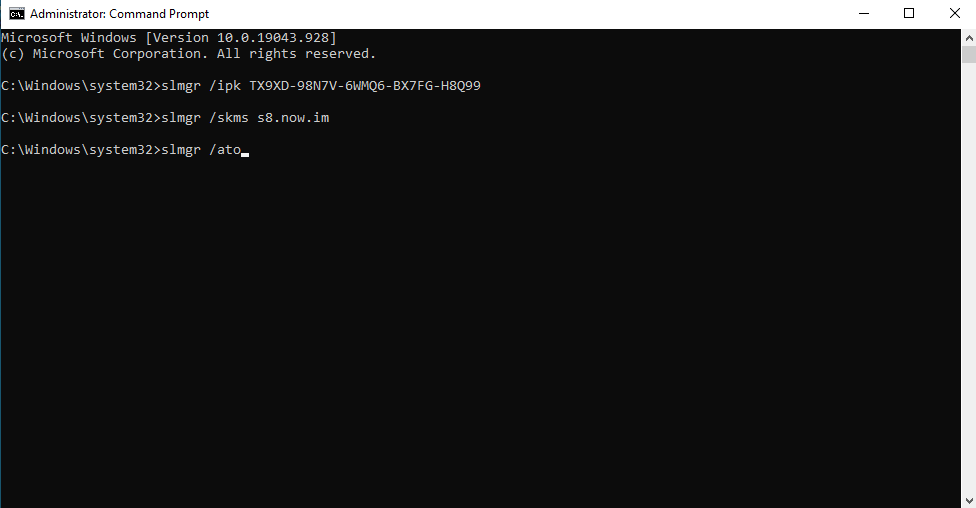
Finally, type slmgr /ato and press Enter. This command triggers the activation process. Once you see a message confirming activation, type exit and press Enter to close Command Prompt.
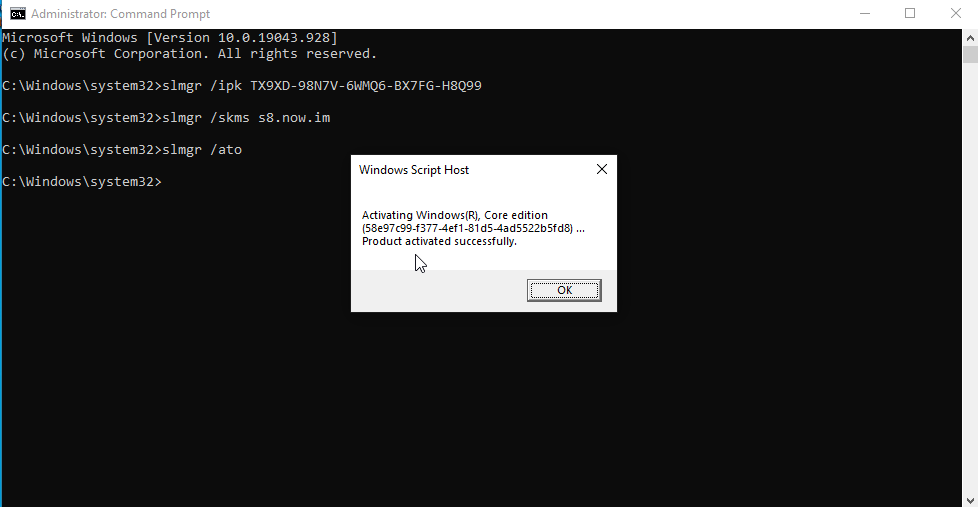
To verify, press Win + S, type Activation, and select Activation Settings. Your status should now show that Windows is activated.
Frequently Asked Questions
Looking for more Windows tips? Check out our guide on how to increase internet speed in Windows 10 to optimize your connection, or learn how to access the WindowsApps folder for advanced system management. If you are considering switching, read about 14 must-have apps for Windows 11.