

Discord is undoubtedly the best VOIP app for gamers. And with the pandemic, it’s pretty much the go-to app for everyone who wants to get along with the bois while gaming or if you want to arrange an online meeting with your colleagues. The best part about the discord app is that it is completely free of cost and has one of the best developers communities. However, just like any other apps, Discord also has a few hiccups that cause problems where one cannot connect to a specific discord server, or sometimes discord keeps saying connecting and more.
Recently, a lot of discord users are facing a weird issue where they are prevented from joining the discord servers with an issue called ‘No Route’. The discord no route error falls along with the same category as the other discord errors such as ‘ICE Checking Discord Error‘ and ‘Discord RTC Connecting No Route Error‘.
What is causing the Discord No route error?
As on date, there’s no specific reason for which the Discord No route error occurs. But don’t worry, we have gathered a few common causes and the fix for the same problem.
Here are a few common causes for the problem:
- Advertisement -
- Third-party firewall blocking discord – If you have a firewall enabled (In-built or third-party firewalls) or anti-virus running in the background, it will create permission issues that block discord from establishing a connection to an outside server.
- Issues related to IP address – If the internet you are using has a dynamic IP (IP address that keeps changing regularly) there might be some connection issues between the computer and the discord servers. But a simple modem or router restart can fix this error.
- VPN without UDP protocol – If the VPN you use doesn’t come with a UDP (User Datagram Protocol) then discord won’t work as discord is specifically designed to work with VPNs that have the UDP feature.
- Restricted by Admin – When you are trying to access discord from a common WiFi like the ones at work or school, there might be a good chance for the network admin to have the Discord app blocked.
- Discord server voice region – If you are trying to connect to a discord server from a different country than the server’s origin country, it might lead to several issues like discord 5000ms high ping or sometimes even not connecting to voice channel. You can request the server admin to change the server region to somewhere closer to get less discord ping.
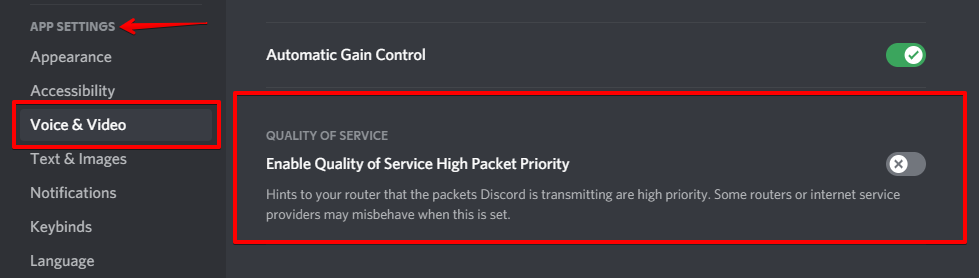
- Network not supporting QoS – This is a rare case scenario where your network doesn’t support Quality of Service packet priority. This can be disabled under the Voice & Video settings in Discord. Additionally, you can also troubleshoot using the WebRTC website to check if all the features are supported by your computer and the internet.
How to fix Discord No Route Error?
Errors can sometimes be a pain. Especially when there’s an error on discord, you are sometimes forced to use the in-game VOIP which sucks.
If you are looking for a solution to fix the Discord No route error, then this article will guide you through the different things along with troubleshooting steps.
For this specific error, below are some of the tried & tested methods that several other people have used to get this issue solved.
So, stay put and try them one by one and let’s hope the Discord No Route error is solved in no time.
Method #1: Restart your Modem/Router and Computer
Before getting into the other methods, the simplest way you can get started is to Restart your modem/router and your computer. This is one of the reasons most of the support executives ask this as the first question when you approach for help “Have you tried restarting your modem or computer?”.
- Advertisement -
A simple restart could help the computer restart all the computer processes in the background that also Includes discord’s background processes. So this might be a potential fix for most of the issues.
Secondly, a simple restart of your modem or router can fix this issue. The Discord VC no route error often occurs for users with an internet that provides a dynamic IP address. The dynamic IP address often disrupts the IPV6 connection as it keeps changing.
Now that you have restarted both your router/modem and computer, try connecting back to any discord server. If the no route error still occurs, you can try any of the following methods down below.
- Advertisement -
Method #2: Disable QoS option in Voice & Video Settings
QoS or Quality of Service High Packet Priority is a feature of discord that allows packets packet prioritization while they are being transferred over the internet. Almost every VOIP apps use high-priority packet transferring methods to avoid lags and enable high-quality voice transmission over the internet.
On the same note, many users on the internet have reported solving the discord no route error by disabling the QoS option in the Voice & Video settings. This is a pretty common error that occurs when the computers are not able to keep up with the High Packet Priority QoS. Meanwhile, some users have also reported that lag spikes occur if the QoS is enabled.
So, if you want to try your luck to resolve the no route error, disabling the QoS (Quality of Service) might be a potential way to fix it.
Here’s how you can disable QoS in Discord
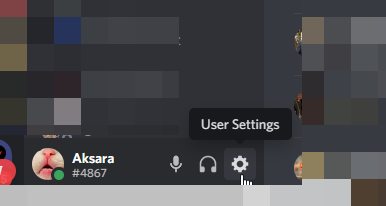
- Open Discord and in the bottom left corner, click on the small gear icon next to your profile name & hashtag.

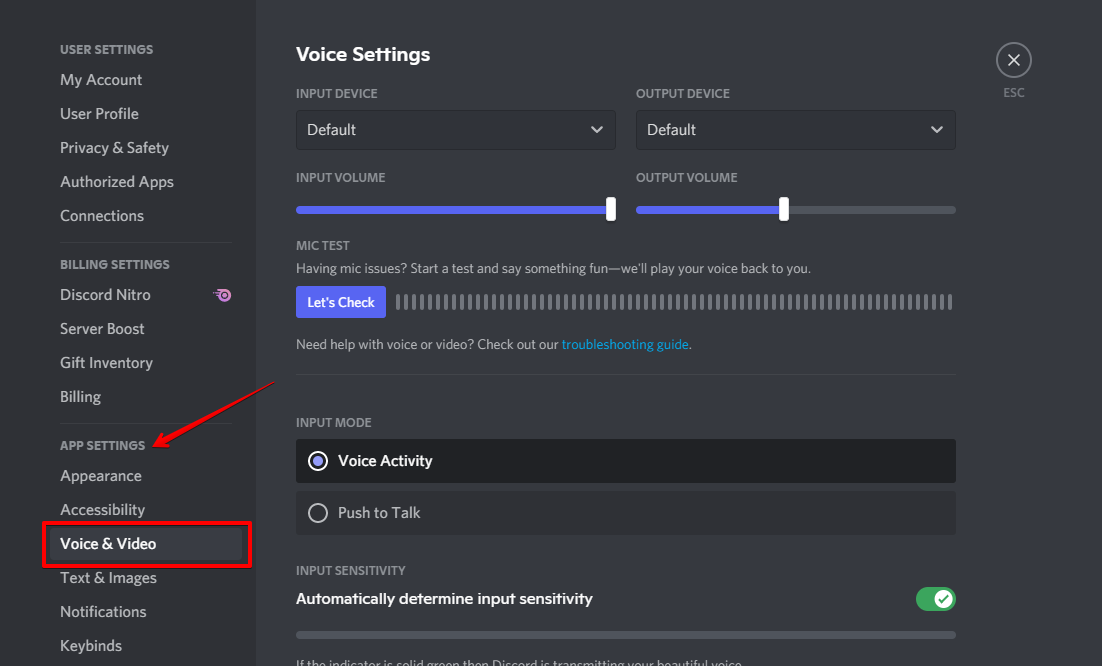
- Once you are in the settings menu, scroll down to App Settings and click on Voice & Video.

- Under the Voice & Video settings, scroll down further to the Quality Of Service and disable the toggle that says ‘Enable Quality Of Service High Packet Priority‘.

- Close discord completely, open it again, and see if the No Route Error still persists. If it is still there, then follow the other methods down below.
Method #3: Change your Discord server region
If you are a gamer, you know that the server closest to the place you live is the best. If you do the other way round, you will face all kinds of issues like high ping, rubber banding, and more.
Similarly, if the Discord server you are in is from a different region, you will different kinds of issues including the no route error. In simpler terms, there’s a good chance that you are facing the no route error because the server is in a different region. Therefore, it is better to change the region of the discord server.
Here’s how you can change the Discord server region
- Open Discord and head over to the server where you want to change the region.
- Once you are on the server, go to any voice channel and click on the small gear icon ⚙️ that says Edit Channel

- In the Voice channel settings, scroll down until you find Region Override.

- Under the Region Override option, you will be able to select any region close to your region.
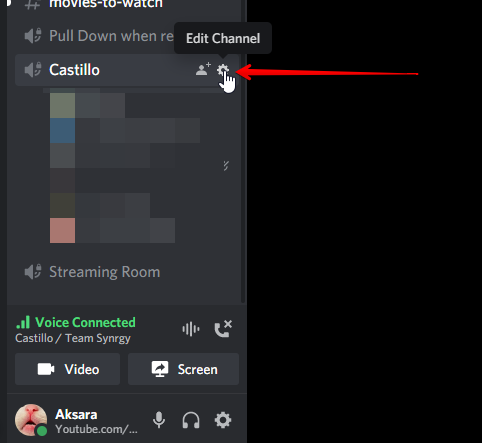
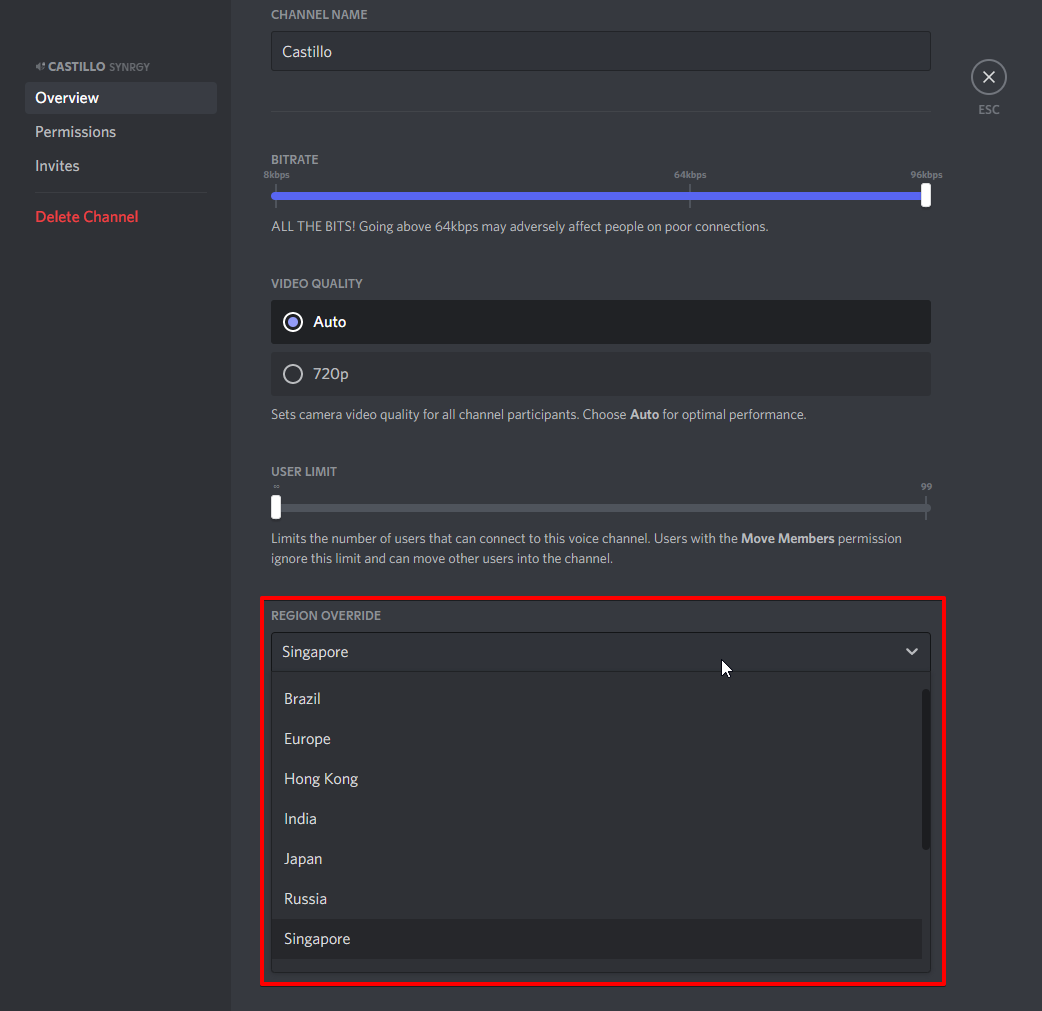
Note: To change the region of a voice channel in Discord, you should be an admin. If you are not an admin, you can request your admin to do the changes.
Once the changes are made, restart discord and try connecting to any voice channel to see if the no route error is fixed. If not, then follow the other methods shared below.
Method #4: Disable VPN from your computer
As mentioned in the earlier points, Discord is configured to work with VPNs that have the UDP (User Data Protocol) configuration. When the user is trying to connect to any discord server without the UDP-supported VPN, then the user may face connection issues.
You can verify whether the support with the VPN supports or double-check by disabling the VPN then connecting to any voice server in discord. If it connects, you can continue using discord without a VPN or lookout for a VPN with UDP support.
Method #5: Flush DNS from your system
Few users have reported that flushing the DNS from the system has solved this issue. DNS can be flushed from your system with a series of commands that clears any IP addresses or DNS records saved by apps & websites from the cache memory.
Here’s how you can flush DNS quickly
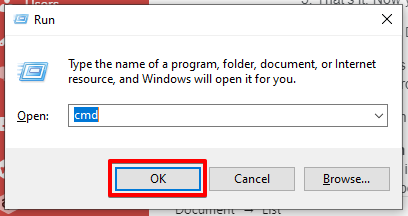
- Open the Run Dialogue Box by pressing Windows Key + R. In the box, type in CMD and press Crtl + Shift + Enter to open an Elevated Command Prompt (Admin level permissions).

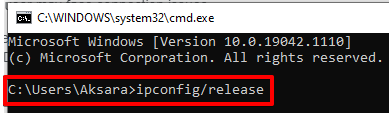
- Once the command prompt window opens, type in the following command and press enter.
ipconfig /release
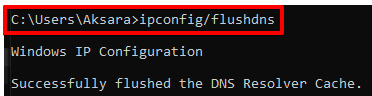
- Once the IP configuration has been released from your system, type in the following command and press on enter to flush the DNS.
ipconfig /flushdns
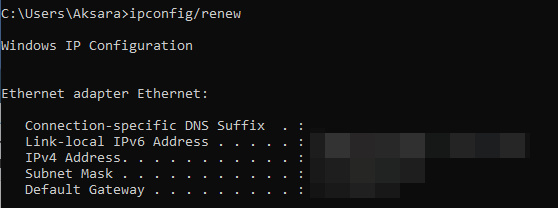
- Once the DNS is flushed from your system, you can renew the IP by typing in the following command.
ipconfig /renew
- That’s it. Now you can reboot your computer and see if the discord no route issue still persists. If yes, you can try out the other methods below.
Method #6: Check if Discord is blocked by your network admin
If you are having this problem while you are at school or work, then there’s a good possibility that the discord app is blocked by the network administrator. You can either request the admin to unblock the discord app from the blocklist or follow the below steps to overcome the block while using discord.
This small tweak can overcome the discord no route error while you are using public wifi, but this little trick can help you overcome it. Here’s what you should do –
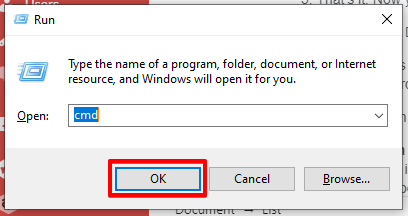
- Open the Run Dialogue Box by pressing Windows + R. Once it is open, type in Control to open up the control panel.
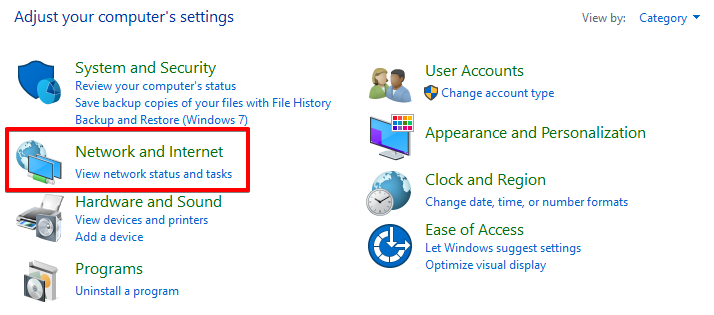
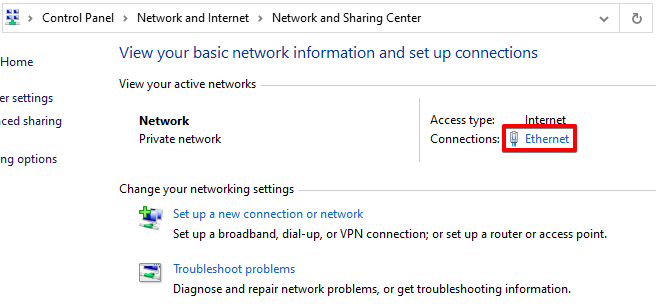
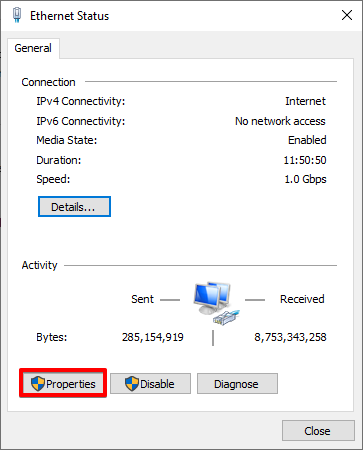
- Once you are in the Control Panel, headover to the Network and Internet > Network and Sharing Center then click on the small clickable link next to the Private Network as shown in the below picture.


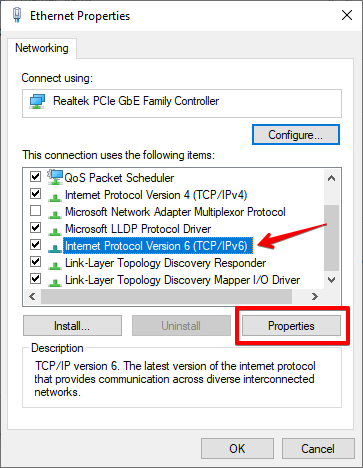
- By clicking on the network name, it should open up the Wi-Fi properties for that specific network. First click on Properties and In the next tab, head over to the Networking tab and click on Internet Protocol Version 4 (TCP/IPv4) or (TCP/IPv6) and click on Properties.


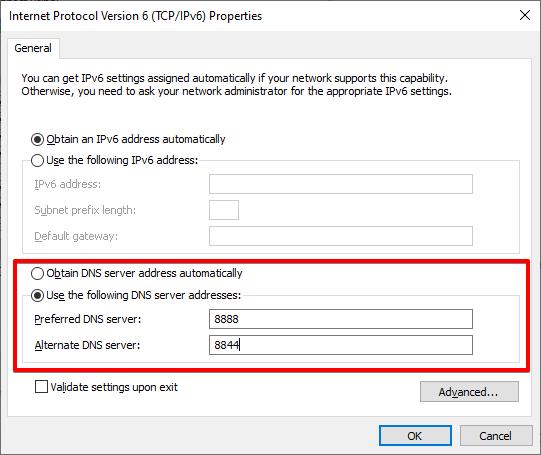
- Under the properties tab of Internet Protocol Version 4 (TCP/IPv4) scroll down to the DNS section and select the Use the following DNS server addresses and change the values to the as you see below –
Preferred DNS Server: 8 8 8 8
Alternate DNS Server: 8 8 4 4
And click on OK to save the changes. - The next thing you should do is close all the opened windows and restart your computer. This should potentially fix the Discord No Route Error while you are connected to public networks. If it still persists, then follow the other steps shared below.
Method #7: Whitelisting Discord in your Firewall
One other possible cause for the Discord No Route Error might be the strict firewall settings that can interrupt/block the outgoing connections from the computer. This can be as simple as disabling the windows defender or removing the antivirus software from your computer directly.
Here’s how you can disable Windows Defender
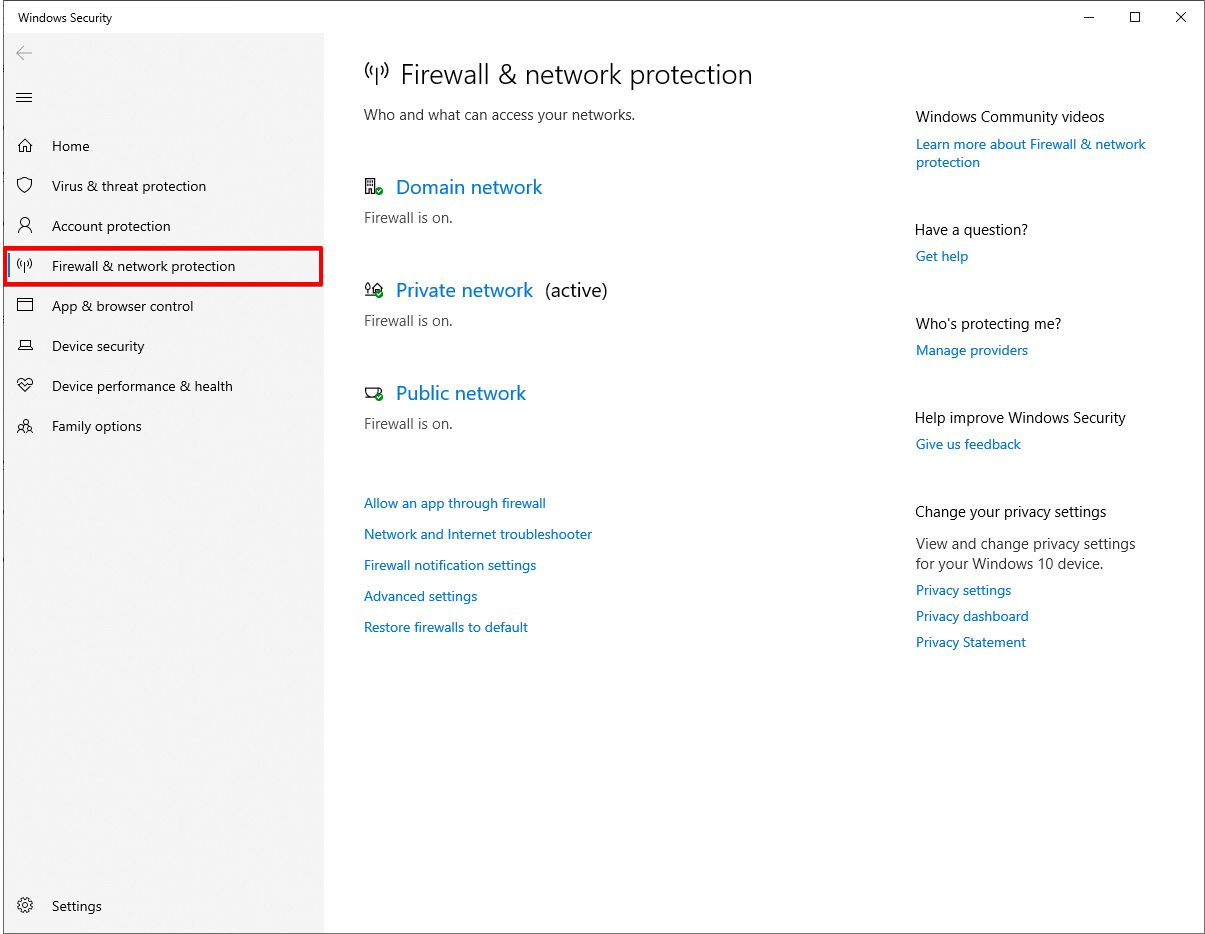
- Click on the Start button > Click on settings >Click on Updates & Security > Click on Windows Security > Click on Firewall & Network Protection.

- Choose a Network Profile and once you are in, under the Microsoft Defender Firewall, simply turn off the Windows Defender.

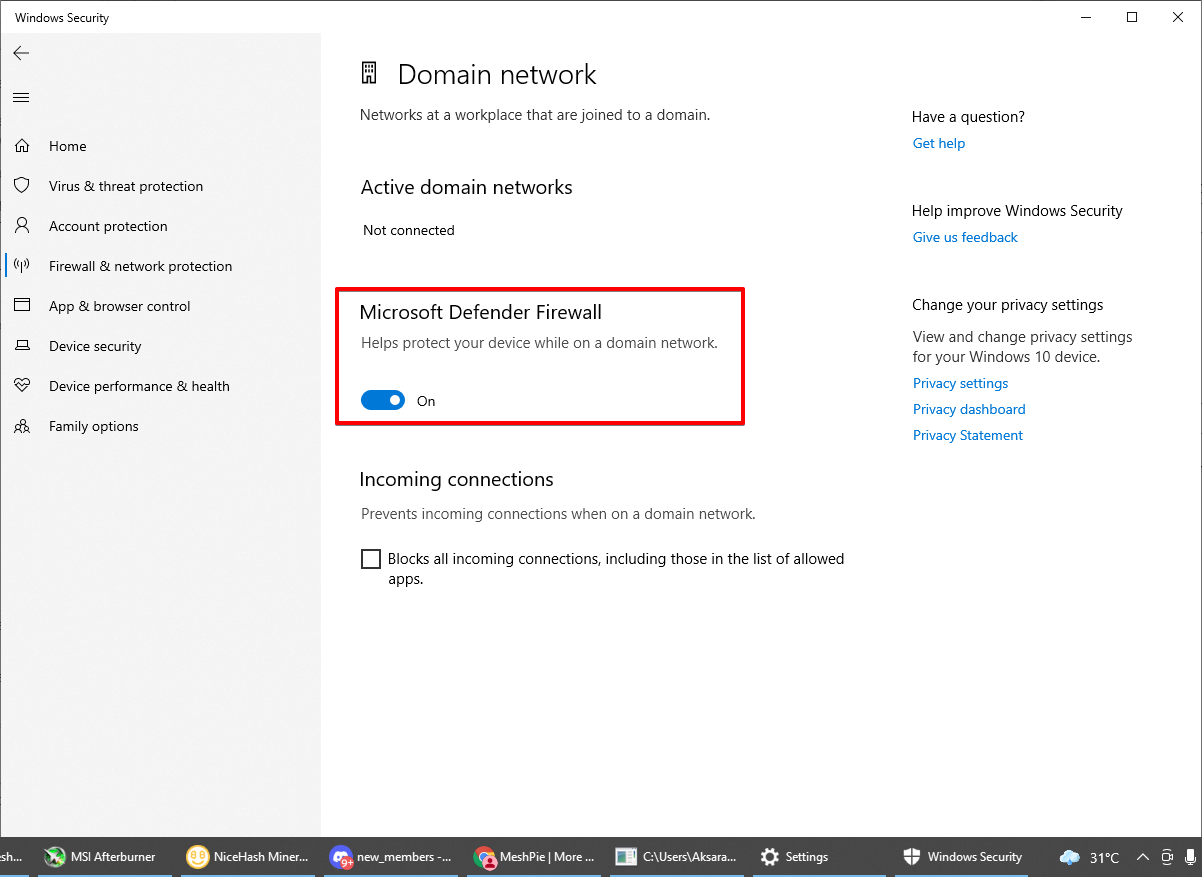
Now check if you are able to join a voice server, if not there’s one more way. If you are using a third-party firewall or anti-virus software, uninstalling them might be a potential fix for the discord no error.
Here’s how you can uninstall 3rd party firewall or anti-virus software
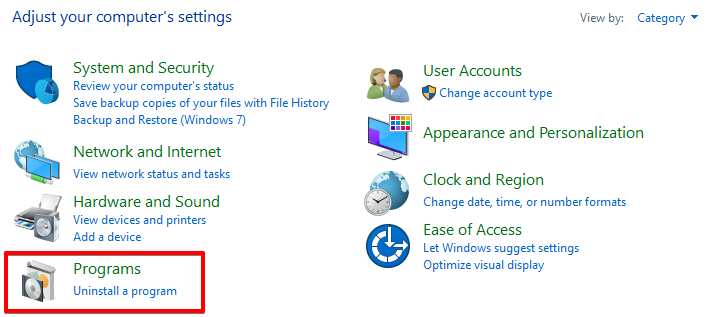
- Open Control Panel and head over to Programs and features.

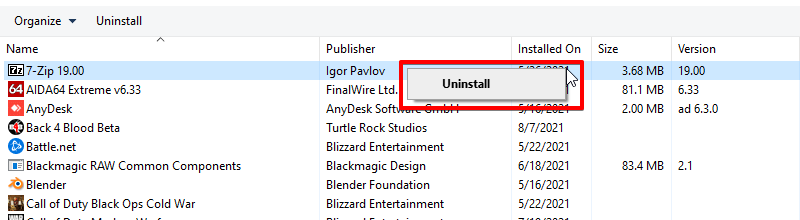
- There, find your 3rd party firewall software or anti-virus software. Right-click on it and click on Uninstall.

- Once you have Uninstalled, try rebooting your computer and see if you are able to join a discord voice server without any issues. If not, try one of the below methods.
Method #8: Change your default DNS to Google’s DNS
DNS translates human-friendly languages to machine-friendly IP addresses. By default, you will be using the default DNS configured by the internet provider. But changing them to a custom DNS such as Google DNS can show immediate effects in normal day-to-day internet activities and other harmful DNS-based attacks if they are not secured properly.
To change the default DNS to custom Google’s DNS servers, you can follow the steps shared in Method #6 and check if it works out for you. Once the DNS servers are changed, restart your modem/router & your computer and try joining any Discord Voice Channel. If the same issue still persists, then try the methods shared below.
Method #9: Check Discord from the browser
Discord’s base app for Windows can be one of the problems here. If the above methods didn’t help you overcome the discord no route error then one of the last options you have is to try accessing discord via a browser.
This can help you bypass almost any issues you face with discord and let you join any discord voice server without any issues. There might be some difference in the interface of the app, otherwise, the browser version has all the features as the discord base app for windows.
Method #10: Check your internet connection
If the above methods didn’t help you fix the discord no route error, then the final and the last option you have got is to check with the connection issues. It can be from the internet provider side or from the router side. You can check with your internet provider and request for a new IP or try to reconfigure your modem/router from the beginning.
Final Verdict
We all know how it feels when some problem interrupts our gaming time. Hope this guide on fixing the Discord No Route Error helps you fix the issue. We tried gathering all the possible information relating to this problem and shared simple guides to overcome the problem.
Hope this helped you fix the discord no route error. If you have any queries relating to this or if you want a guide to fix any other error, drop them down in the comments section. We at MeshPie will be more than happy to help you. Happy Gaming!
Also read: Best alternatives for Zoom App