

Want to know how to hide the blue tick in Whatsapp? Or you don’t want others to know you have read their messages, well we have covered in detail how to disable the blue tick mark.
According to the Whatsapp algorithm, if you send a message to someone and
- If it is received by them but not yet seen then 2 grey colored tick marks will appear on the right bottom corner.
- If it is not yet received by them, then only a single grey tick mark appears on the right bottom corner.
- If the message is read by them, then 2 blue tick marks appear.
Why should you hide the blue tick in Whatsapp?
If you feel you are getting too many Whatsapp forwards or if someone is disturbing you a lot then you can definitely consider turning off the read receipt. Or if you are busy at your house and imagine your Boss texting you, if you have disabled the blue tick mark, you can read the message without your boss knowing that you have read it. Or, you have a girlfriend and she keeps on nagging on Whatsapp, you can stay online without her knowing it but still message your friends if you have disabled the blue tick mark. Or if you want to avoid the messages from your “Whatsapp-forwards uncle”, if you have disabled the blue tick mark, they will think you are not using WhatsApp and they will stop messaging you. Trust me, I have them turned off and now I rarely receive any forward messages from my relatives and all those who kept forwarding messages thinking that I have stopped using Whatsapp.
One day it was India Vs Australia match, and it was a nail-biting moment, and suddenly I received a Whatsapp message from my boss regarding office work, I was really pissed off. Fortunately, my Read receipt was turned off so I just left that message unanswered. Later, after the match was over I messaged him apologizing that I had gone to Hospital.
- Advertisement -
How to hide the blue tick in Whatsapp?
If you wish to turn off the Read receipts follow these steps in order.
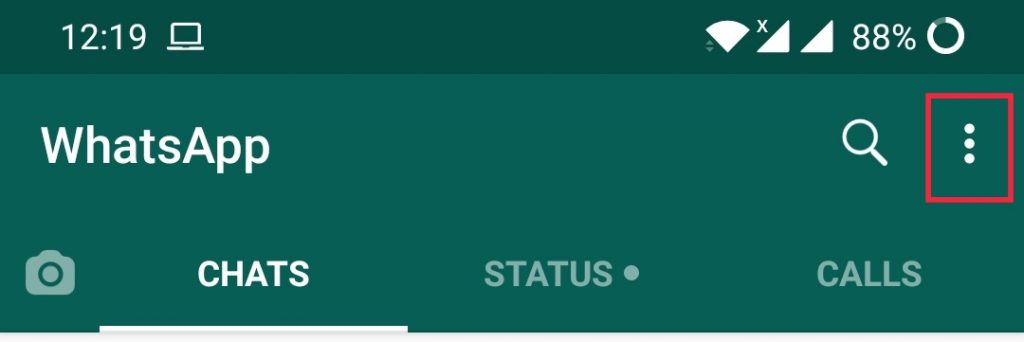
- Open the Whatsapp, press the “workflow button”(3 verticle dots) on the top right corner in the application.
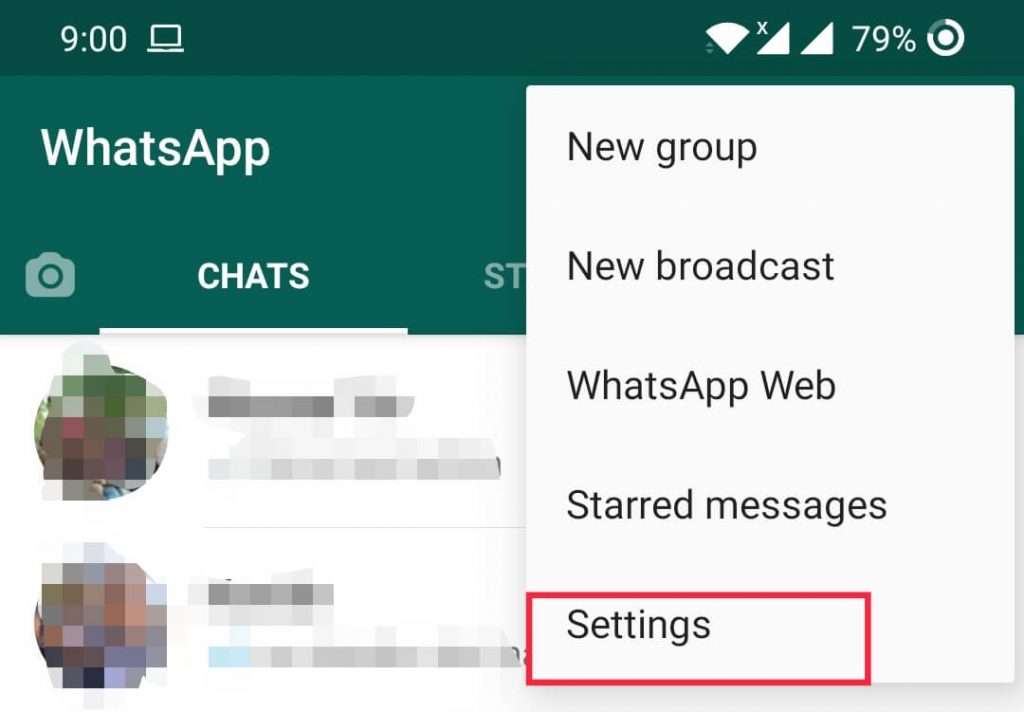
2. From the various options available in the dropdown, select the “Settings” option.
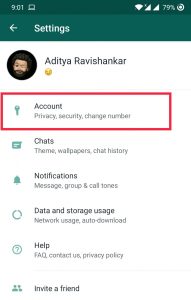
3. Once you press the Settings, you will find many options, in that select “Account”
- Advertisement -
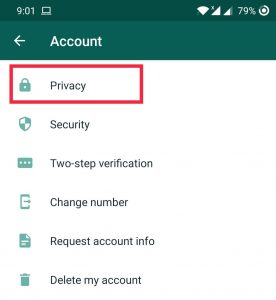
4. Once you are into the Account, again you will find many options from which select “Privacy”.
- Advertisement -
5. In the Privacy page, you will find an option to enable or disable “Read receipts”. It will be enabled as the default option, but if you wish to turn off the blue tick mark, then disable Read receipts.
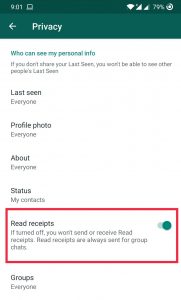
Once you have turned off the Read receipts, you not only turn off the blue tick mark but also you turn off your last seen time. Others will not be able to see when was the last time you were online.
Whatsapp is currently working on many new features like an Increased number of people in group chats to compete against various other video conferencing applications like Google Duo, Self-destruction messages, Search bar for photos and GIFs, verification of forwarded messages since nowadays people just keep sharing messages whatever they receive. And also Whatsapp in order to prevent the spreading of bogus information, is going to bring in these new features. And also Whatsapp is trying to bring in multiple devices that can access Whatsapp with a single mobile number, so when a new device is added the user will get a notification.
There are even other cool features like messaging someone without adding them to your contact. (click here to know how) this will help you in situations like where you need to text someone who is a complete stranger so you don’t want to add him to your contacts. Knowing these kinds of cool features will lend you hand someday.
There are some people who don’t like the blue tick as it might cause potential relationship problems of not replying to messages, people thinking they don’t care and whatnot. These misconceptions can break many friendships & relationships :P. So, follow this simple tip and avoid ego problems with your friends, work colleagues, and whomsoever. This might be a simple tip where you can turn off the read notification in WhatsApp but this simple tip might help you get away from lots of problems.
Hiding the blue tick was easily possible with third-party WhatsApp apps earlier, now that those are banned this is the only possible and legit way to do it. WhatsApp plus, GB WhatsApp, and more such third-party WhatsApp apps did more than hiding the bluetick. Stay tuned for an article on GB WhatsApp very soon on MeshPie.
Also, read more of our WhatsApp guides & tips here :